Teaching Tip: Updating Canvas for the Start of the Semester
This updated checklist intends to help your course meet the minimum expectations of Quality Matters and have proper settings and organized content. The Canvas Instructor Guide is a great resource if you have questions about using Canvas. As you prepare your course for the new semester, check off items on this list when you have confirmed they are complete.
Canvas Setup
Import from previous semesters - Make sure your course content has been successfully imported from previous semesters. (Instructor Guide: How do I copy content from another Canvas course?)
Validate Links - Use the Validate Links tool to check all the links in a course at the same time. Links can get broken during the import process. You can find this tool under Settings in the left-hand navigation panel.
Combine sections of a course. - This feature allows you to move section enrollments from individual courses and combine them into one course. This feature is helpful for instructors who teach several sections of the same course and only want to manage course data in one location. (Instructor Guide: How do I combine sections of a Canvas course?)
Review dates. - Review the start and end dates for the course and ensure they accurately reflect the course term and include a short period of time after the end of the term for students to check final grades and assignment feedback. (Instructor Guide: How do I change the start and end datesfor a course?)
External tools - Check if all external tools (e.g., Kaltura, TopHat, InScribe, etc.) are working properly, and make sure provide students the links to download the software.
Homepage - Set up or choose a home page to help your student get started. These homepage recommendations help your students familiarize themselves with your course and/or find the most recent announcements each time they enter your course. (Instructor Guide: How do I change the Course Home Page?)
Course card - Consider adding a course card to your page. A course card provides visual representation of the subject by adding an image in Course Settings. Canvas Guide - Add Image to Course Card
Syllabus - Set up your syllabus page by uploading your syllabus in Word/PDF format or edit the syllabus tab from the left navigation menu (Instructor Guide: How do I use the Syllabus as an instructor?) Having access to syllabi at least a week in advance would be extremely beneficial so that students can plan and organize their time for the semester ahead. The syllabus tool is a function in Canvas that allows students to see your syllabus and a list of assignments in the course in one easy to view location. You can see how it works on the Canvas Syllabus help guide (More on the syllabus will be provided next week).
Check for ADA accommodation requests - Do any of your students have accessibility accommodations this semester? It's important to make sure all your students are set for success. This can mean adding extra time to an exam for a student, ensuring your content is screen reader ready, or adding alternative text to images. https://community.canvaslms.com/t5/Accessibility/General-Accessibility-Design-Guidelines/ba-p/252642
Contact Information - Instructor has provided contact information which may include biography, availability information, communication preferences, response time, and picture.
Navigation - Disable any features you and your students will not be using. For example, if you have decided not to use LinkedIN Learning, you should hide the link on the sidebar. (Instructor Guide: How do I manage Course Navigation links?)
Quick Tip: Deliver Assignment Instructions as a low-stakes quiz
There are several ways that you can provide students with directions for an assignment:
Provide a write up in a handout or post in Canvas.
Read parts of the directions to the class and ask if anyone has questions.
Create a quick video explaining the assignment.
As an alternative, you can use the Canvas quiz or quick check function to walk students through assignment expectations step-by-step. Students have to affirmatively answer questions - ranging from a simple “Yes, I understand” to choosing between options - about different components of the assignment.
A question about the components of a final programming assignment, for example, might ask them to think about how many different smaller assignments they’ll need to complete over the semester. While this adds a little extra step, it helps reinforce the importance of carefully reading assignment instructions. Additionally, once you’ve created the quiz once, you can re-use it for every assignment.
Delivering the assignment instructions as a quiz walks students through assignment expectations step-by-step and makes students affirm that they have read the instructions. Every small thing we can do to encourage students to slow down and read instructions carefully is helpful.
2023 State of Student Success and Engagement in Higher Education
Instructure, the company that created Canvas, has released the report: The 2023 State of Student Success and Engagement in Higher Education. They worked with Hanover Research to field a survey in 17 countries, asking for the perspectives of 6,100 current students, administrators, and faculty from 2-year, 4-year, public, and private higher education institutions in order to answer the following questions:
Are students satisfied with the existing skills-based learning opportunities for lifelong learning?
What tools best support student success and engagement and how can they be leveraged across the education landscape?
With technology being so immersed in the student experience, how can institutions address barriers to access and provide educators with the support they need inside and outside the classroom
How are faculty across the globe being supported through changes in their industry?
The key takeaways are:
Skills-based learning is becoming the most valued for its practical application in the workforce.
As the workforce shifts and more jobs go remote, the need for students to demonstrate proof of skills to potential employers increases. Career advancement and the desire to learn new skills are most likely to influence students to pursue a skills-based learning opportunity, along with cost and program flexibility. Students increasingly desire courses and programs that undoubtedly prepare them for the workforce and expect educators to make more personalized courses, offer hands-on, practical learning opportunities, and support on-the-go learners.
Certificates and apprenticeship programs are becoming highly valued by both students and employers for their demonstrable proof of workplace skills, and upskilling/ reskilling for lifelong learners.
Longer life expectancy, education costs, and changes in the workplace are driving a fundamental shift toward lifelong learning. As more students seek skills-based learning opportunities to supplement their traditional degrees and ensure return on their educational investment, colleges and universities can adapt their offerings to meet this need. Of the skills-based learning opportunities institutions currently offer for lifelong learning, students are most likely to consider certificates and apprenticeships. Viewed positively by three-quarters of respondents, certificates and apprenticeships can serve as viable vehicles for the practical skills learners need for career readiness and advancement.
Schools need to provide consistent guidelines and training around generative AI for educators and students or risk a growing divide in skill development.
While technology played a vital role in getting students and educators through
the pandemic, AI has introduced a growing divide in the adoption of tech tools in the classroom. Through guidelines and training for generative AI, colleges and universities have an opportunity to aid educators in driving consistency for learners. Despite the building interest in generative AI, these tools have yet to be used consistently across institutions, with only one-quarter of educators currently using them. The top concerns educators have about using AI in classrooms are cheating/plagiarism and decreased creativity/critical thinking among students – who also use AI for research, writing and test preparation. Instead of hyper-focusing on cheating, educators should shift their focus to new assessment methods and productive uses of generative AI tools. Otherwise, they risk losing tech-native students and an opportunity to prepare them for future jobs that will leverage advanced technology.
Access to technology has the greatest impact on student success and engagement, but we haven’t solved the accessibility gap for many learners.
One of the silver linings of the pandemic was the increase in accessibility delivered through technology. However, as technology and education evolve, institutions risk widening the gap in accessibility for students with little or no access to technology, edtech tools, and reliable Wi-Fi or broadband connections. Learning management systems are among the most used edtech solutions, which most students and educators say are being used to increase accessibility. Although institutions provide technology equipment to students who cannot access it, offer hybrid learning options, and provide mobile app access to the LMS, accessing technology remains one of the biggest roadblocks for many students.
Students and educators value mental health resources, but really want time off.
Psychological well-being and access to mental health resources greatly impact student engagement and faculty support. Many institutions provide mental health resources that can be accessed through LMS integrations and partnerships, but a good portion of students are unaware of or unable to leverage these resources. Today, the top mental health resource offered by institutions is in-person/virtual counseling, but what students and educators want most are personal/ mental health days off to recharge.
Educators feel most empowered when they are given autonomy, respect, and holistic support.
Today’s educators are dealing with bigger classes, more regulation, and demands for greater flexibility from students in how they want to learn. They would like most for their institutions to offer additional personal development, acknowledge/award their achievements, and provide them with opportunities to give feedback. Educators feel most empowered by their institution when they are given autonomy and respect in their position and feel as though their physical and mental health is cared for. Currently, the top professional development opportunities available to educators through institutions are technology training and diversity, equity and
inclusion (DEI) training
Related Resource:
20 Tips for Using Canvas
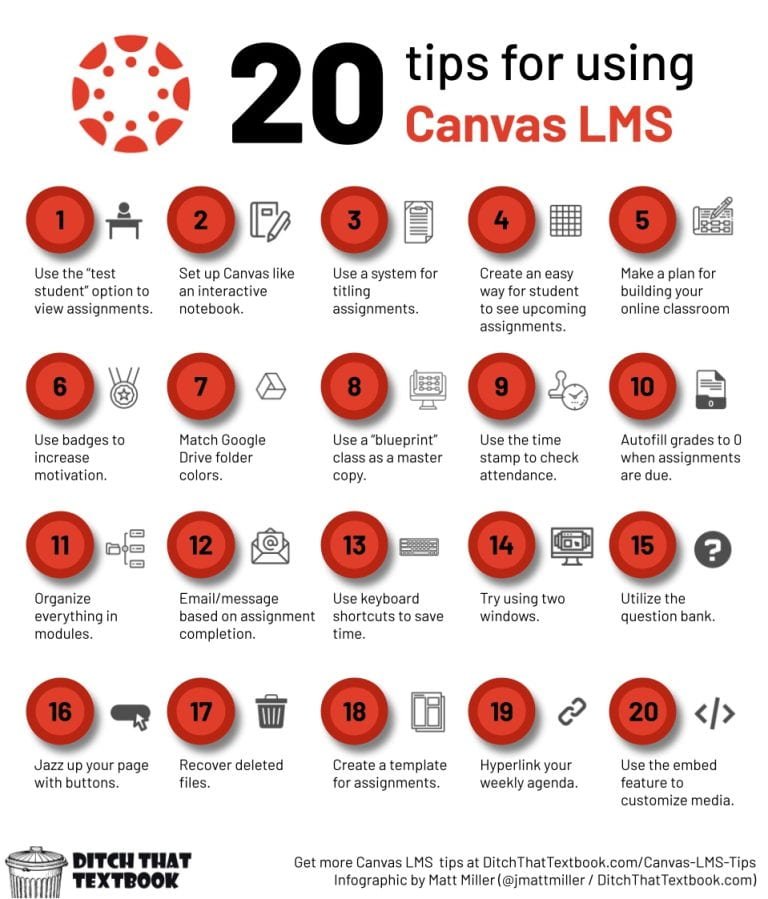
The tips mentioned above were compiled by a fellow Google Certified Innovator based on surveying educators about the features they found most useful for using Canvas. The site https://ditchthattextbook.com/canvas-lms-tips/ provides more detailed resources for each of the 20 tips listed below. For example, if we look at Tip 12 we see:
Email/message based on assignment completion.
I love the feature in the grade book that allows you to email/message students based on whether a certain assignment has been graded, not turned in, or based on certain grades. This can be found on the 3 dots where you find the Speed Grader option — “message students who…” with a video tutorial –
Strategies for Course Communications with Teaching Tools
Creating dialogue between your students can be a challenging yet fundamental part of teaching. Effective communication can help to build and foster a safe learning environment where students can thrive, prosper and learn. In addition to the rhetorical moves you may use to structure your speaking style and structure your communication, you can also develop a plan for various ways you use technology to deliver your message. Develop a strategy for when and how your students will communicate back to you as well as use instructional technologies in your class. Having regular two-way communication that invites all students to participate is essential for building trust (How to Make Your Teaching More Inclusive, 2019). Decide when regular, expected communications need to happen, and how you can best fit these duties into your own schedule. The table below (modified from U of Wisconsin and Instructure), provides various examples of communication strategies and when to apply them in your course.
| When | Communication Strategy | Example | Technologies Used* |
|---|---|---|---|
| Prior to the course start | Introduce yourself to students | Add your photo and a short bio to the course welcome page, and link students here from a welcome email. |
|
| During the first week | Help students meet each other and "break the ice" | Ask students to update their Canvas profile, and use Name Coach to help learn how to pronounce their names | |
| Learn more about who students are and their needs for learning | Assign an anonymous survey in Canvas, Google Forms or Qualtrics that asks students to share questions or concerns they have about the course. View their images through the Class Roster | ||
| Ongoing weekly | Reach out to "inactive" students in Canvas | Use "Message students who..." to contact any students who haven't completed the Discussion or Survey in the first week. | |
| Provide a place to ask general questions | Create a Discussion board in Canvas that's available throughout the course and intended for general questions. Create a Teams or Slack group for your class | ||
| Give students low stake assessments to help master material | Conduct formative assessment for instant feedback during a presentation in Top Hat. Create low stakes automated quizzes in Canvas that students can complete and receive feedback on course material | ||
| Kick off each unit or week | Post an Announcement to start each week that connects the prior week's activities to the upcoming activities. Please note you can preset announcements for each week with reminders of upcoming test or due dates for assignments, or tips on how to prepare for class. | ||
| Provide regular opportunities to discuss course content | Ask students questions to formatively assess how well they learned material through Top Hat. Use Discussions to ask deep dive questions around course content. | ||
| Provide regular opportunities to ask individual questions | Hold office hours, either drop-in or by appointment, Face-to-Face, in Teams or by Zoom | ||
| Provide timely feedback to students | Students are introduced to the Rubric as part of the activity directions. Instructor uses the Rubric as part of their feedback, and encourage or require students to revise their submitted work based on the feedback. Instructors use Speedgrader to provide students with audio or video feedback, and/or students use peer reviews to provide audio or video feedback to their peers. |